Internet Guide to Working from Home
Working from home offers unprecedented flexibility, but it comes with a major catch: you are now your own IT department. Nothing derails a productive workday—or a critical client presentation—faster than a lagging, unstable connection.
Whether you are setting up a remote workstation for the first time or fine-tuning your current space, these five critical internet checklist items will ensure a smooth remote work experience.
Quick Guide
1. Right-Size Your Bandwidth (Don’t Overpay)
A connection that works fine for casual evening web browsing can easily choke when subjected to simultaneous HD video calls, cloud database queries, and large file uploads.
- The Rule of Thumb: Aim for at least 50–100 Mbps download speeds per remote worker in the house, plus at least 10–20 Mbps upload speed.
- Recommended Starting Point: A 200 Mbps download plan is typically enough to handle both professional and household demands.
- When to Upgrade: Consider stepping up to higher tier plans only if you have multiple devices active on Wi-Fi simultaneously or if your household heavily uses the connection for non-work activities like 4K video streaming and online gaming.
2. Hardwire Your Connection: Ethernet vs. Wi-Fi
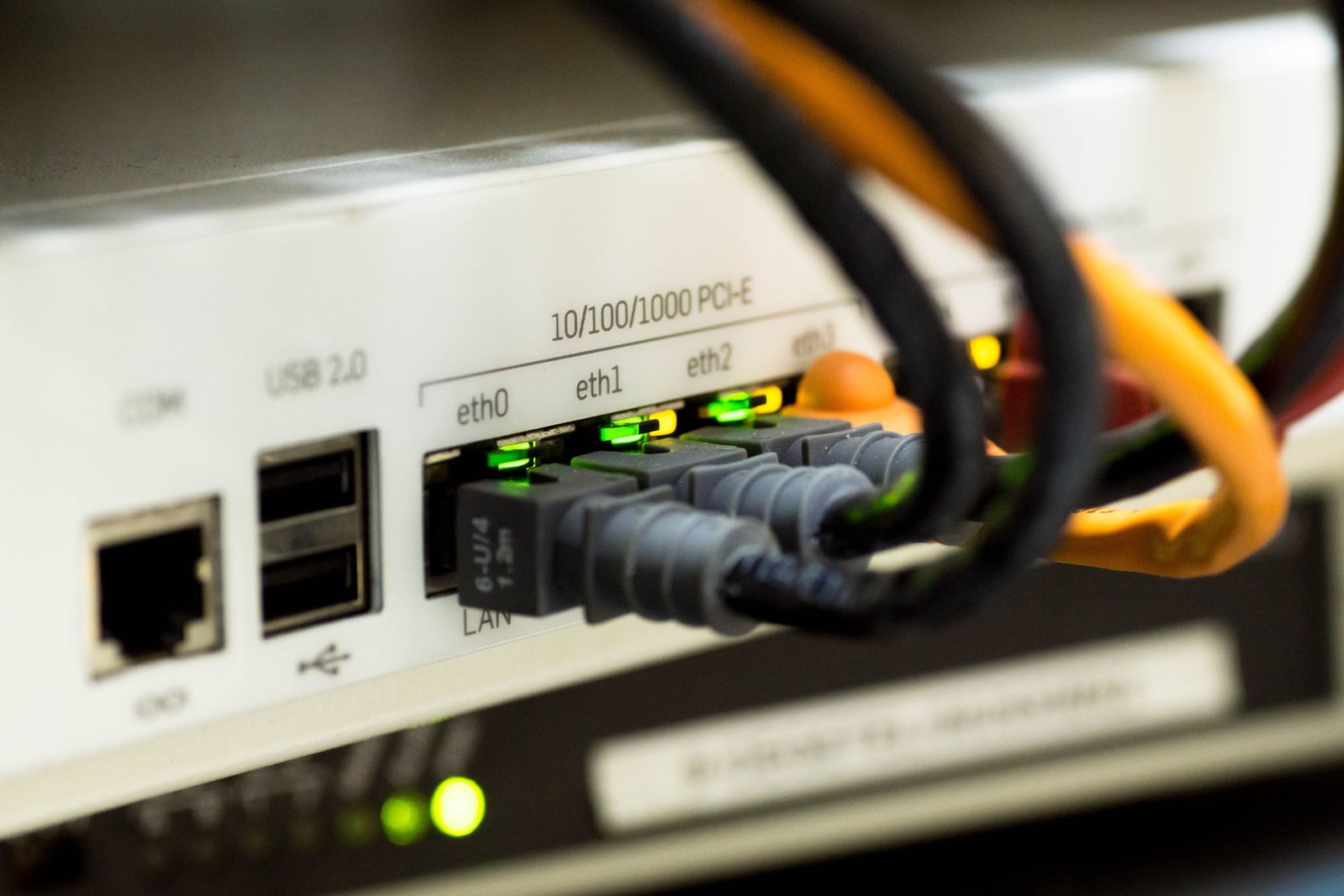
While Wi-Fi is convenient, an Ethernet connection is recommended in many instances. Obstacles like drywall, microwave ovens, and physical distance degrade signal quality and introduce latency (lag). Consider the advantages and disadvantages of each approach.
Wi-Fi vs. Ethernet Cable: Pros & Cons
| Connection Type | Pros | Cons |
|---|---|---|
| Wi-Fi | • Freedom to move around the house • Less cable clutter | • Susceptible to signal interference and dead zones • Higher latency and jitter during video calls |
| Ethernet | • Consistent, maximum connection speeds • Ultra-low latency and packet loss | • Tethered to a fixed desk location • Requires running physical Cat6 cables |
3. Audit Your Hardware (Router & Modem)
To keep your connection running smoothly, it helps to understand the three basic hardware pieces sitting under your desk:
- Modem: The translator that connects your home to your Internet Service Provider’s (ISP) network.
- Router: The traffic director that broadcasts the internet to your devices wirelessly or via Ethernet cables.
- Gateway: A two-in-one box provided by many ISPs that combines both a modem and a router inside a single device.
Why You Need a Wi-Fi 6 Router
If you rely on wireless internet for work, ensure your router supports Wi-Fi 6. Introduced in 2019, Wi-Fi 6 represents the modern standard for wireless technology.
Unlike older Wi-Fi versions, Wi-Fi 6 delivers significantly higher internet speeds and greater network efficiency. It handles congestion far better—allowing dozens of smart home devices, laptops, and phones to stay connected simultaneously without slowing down your critical work calls.
4. Establish an Off-Site Backup Location Plan
Even the best internet service provider (ISP) suffers local outages, equipment failures, or utility maintenance. Having a pre-planned secondary workspace prevents lost work hours.
- The Public Backup Option: Research local public libraries, quiet community centers, or local coffee shops with reliable public Wi-Fi. Public libraries are often ideal because they provide quiet study rooms, ample outlets, and solid high-speed networks.
- Check Corporate Policy: Before working from a library, coffee shop, or public space, make sure you know your corporate policy about connecting work-issued laptops to public, unsecured Wi-Fi networks or handling sensitive client data in public view.
- The “Return to Office” (RTO) Mandate: Many remote-first and hybrid organizations maintain an explicit policy: If your home internet drops for more than a specified window (e.g., 1–2 hours) and you cannot secure a compliant secondary connection, you are required to report to the nearest regional corporate office or use paid time off.
5. Compare Internet Service Providers (ISPs) in Your Area
Don’t default to the first provider that mails you a flyer. Comparing regional ISPs can save you hundreds of dollars annually for the exact same performance. Pay close attention to pricing structures, introductory rate expiration dates, and connection types (Fiber vs. Cable).
Example Provider Comparison in North Carolina
| Provider | Monthly Cost | Download Speed | Connection Type | Key Takeaway |
| Spectrum | ~$40 / month | 200 Mbps | Cable | • Reliable coverage • Cable speeds can fluctuate during peak neighborhood usage hours. |
| Brightspeed | ~$30 / month | 200 Mbps | Fiber / DSL | • $10/month cheaper for the same download tier • Fiber options offer matching upload speeds. |
- Pro Tip: Look for providers offering symmetrical speeds (where upload speeds match download speeds). Fiber options like Brightspeed often provide equal upload and download capacity, whereas cable providers like Spectrum typically offer lower upload speeds relative to their download rates.